

Most training videos don't get watched the way they were designed to be watched. They get played at lunch, muted on a second monitor, or skimmed at 1.5x speed. Captions aren't a nice-to-have — they're what keeps the content working in the real world.
If you're an instructional designer or L&D professional producing video at any kind of scale, manually adding subtitles is one of those tasks that quietly eats hours. You transcribe, you time-stamp, you fix the errors, you re-export. And then someone updates the script and you do it all again.
AI captions change that. This guide explains how to add captions to your videos automatically, what the process looks like inside Wondercraft, and why it matters for teams trying to produce accessible, professional content without adding friction to every edit.
Why Captions Matter More Than Teams Realise
The business case for captions goes beyond accessibility compliance, though that's reason enough on its own.
Research consistently shows that captioned video drives better retention and comprehension — exactly what L&D teams are trying to achieve. Learners watching training content in a second language benefit enormously from subtitles. So do people in open-plan offices, employees watching on mobile, and anyone who processes information better when they can read along.
For IC teams distributing internal communications, captions mean your message lands even when someone can't turn the sound on. A policy update, a leadership announcement, an onboarding walkthrough — all of it becomes genuinely accessible rather than theoretically accessible.
The problem has never been whether to add captions. It's been how long it takes.
What Automatic Captioning Actually Looks Like
The old workflow — export video, upload to a transcription service, download the file, import the subtitles, fix the timing, re-export — took the better part of an hour for a short module. And that's assuming the transcription was clean.
With an AI captions generator built into your video tool, the process is fundamentally different. You don't leave the platform, you don't manage separate files, and you don't spend time on manual correction for every minor error.
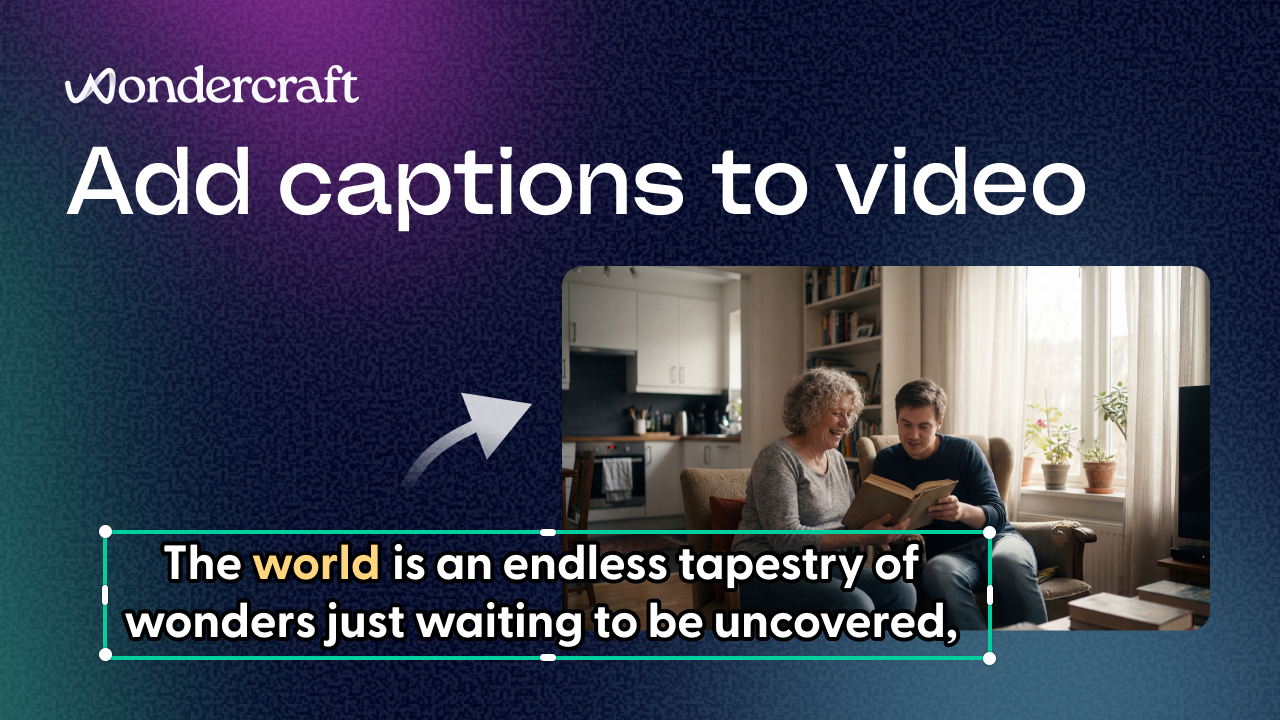
Inside Wondercraft, captions are generated automatically as part of the video creation process. The AI transcribes the narration, times the subtitles to the audio, and surfaces them directly in the editor. From there you can review, make quick fixes, and export — all within the same session you created the video.
For a sixty-second training clip, the entire captions workflow takes under two minutes. For a longer module, it scales the same way.
How to Add Captions to Your Video in Wondercraft
The process has four steps:
1. Generate captions automatically. Once your video is in the Wondercraft studio, the platform uses AI to transcribe the audio and generate timed captions. No manual typing, no external tools. You trigger the generation and the subtitles appear.
2. Review and edit quickly. The caption editor lets you read through the transcript and make corrections inline. If the AI mishears a product name, an acronym, or a specialist term, you fix it directly in the text — the timing adjusts automatically. There's no need to manually re-sync timestamps after an edit.
3. Fix small mistakes instantly. For most content, the AI accuracy is high enough that you're making a handful of corrections rather than a full review. Proper nouns and technical vocabulary are the most common sources of error, and these are fast to fix once you know where to look.
4. Export with subtitles burned in or as a separate file. Depending on where the video is going — an LMS, an internal portal, LinkedIn, a company intranet — you can export with captions embedded in the video or as a standalone subtitle file to upload separately.
Wondercraft's short tutorial video shows the full process in under a minute, which gives you a realistic sense of how fast it actually moves.
Auto Subtitles for Training Videos: The Scale Advantage
For teams managing a library of training content, the real benefit isn't speed on a single video — it's what speed means across fifty videos.
When captioning is fast, you caption everything. When it's slow, you caption the things you absolutely have to and skip the rest. The practical result of manual captioning isn't a partially captioned library — it's an inconsistently captioned one, with accessibility gaps that accumulate over time.
Auto subtitles for training videos remove that trade-off. Every module gets captions as a default, not as an afterthought. Updates to existing content get re-captioned in minutes rather than hours. New languages and localised versions — which Wondercraft also supports — become far more practical to produce when the subtitling step isn't a bottleneck.
Captions as Part of a Broader Video Workflow
The teams getting the most out of automatic captions aren't treating them as a post-production step. They're building them into the production workflow from the start.
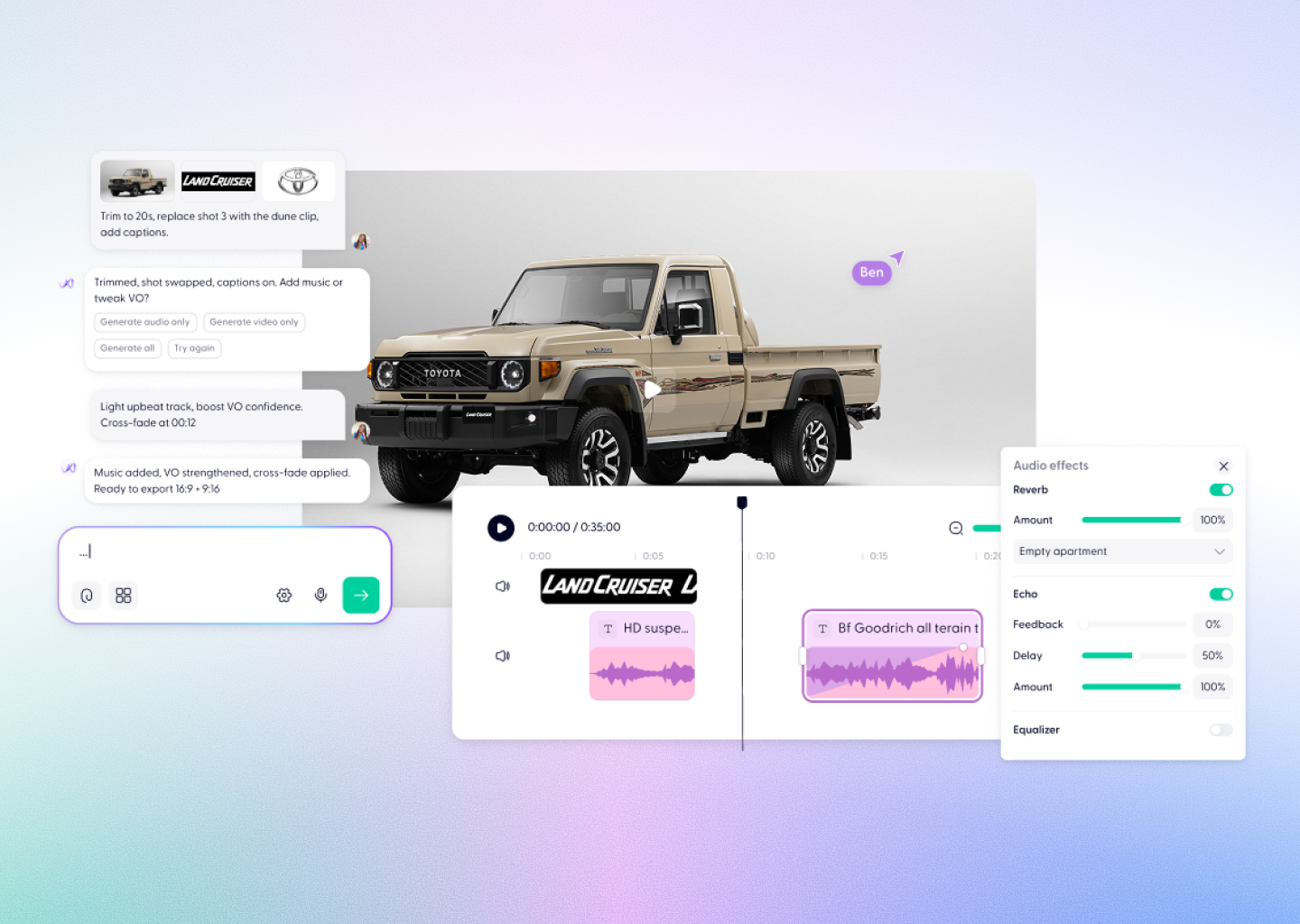
When you're creating video in Wondercraft — from a script, a PDF, a slide deck, or a prompt — captions are generated as part of the same session. By the time you're reviewing your first draft, the subtitles are already there. You're not adding a step at the end; you're completing a step that's already been done for you.
For IC and L&D teams under pressure to produce more content with the same resource, this kind of workflow integration is where the time savings actually compound. It's not one task that gets faster. It's every task in the sequence.
Getting Started
If you're already using Wondercraft, captions are available directly in the studio. Open any video project, generate captions from the subtitles tool, review the output, and export.
If you're new to the platform, you can start for free at wondercraft.ai. The captioning feature works on uploaded video as well as AI-generated content, so you can test it on something you've already produced to see how it handles your specific content and terminology.
The first time you caption a video in under two minutes, the old workflow starts to feel very hard to justify.