

PDFs are where a lot of important content lives.
Onboarding docs, internal updates, training guides, reports - all useful, all structured… and often not consumed the way you’d hope. Video tends to land better because it’s easier to follow and easier to share.
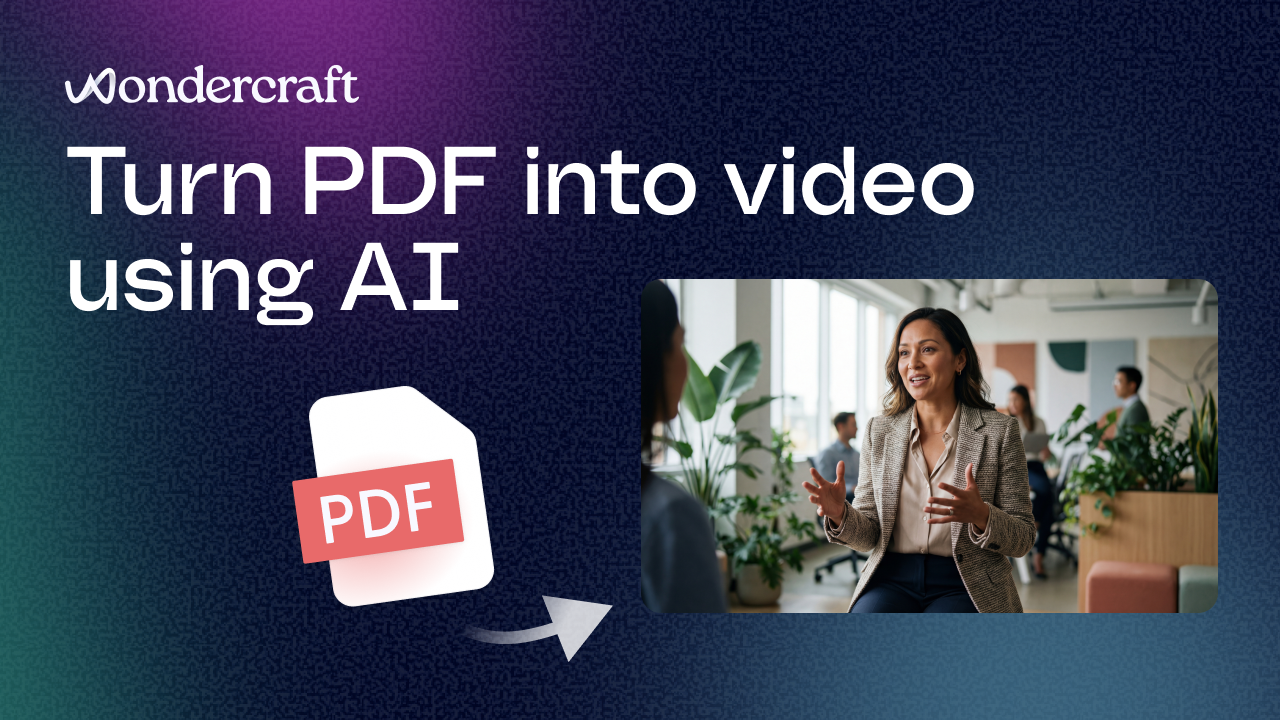
This tutorial shows how to go from PDF → polished explainer video in Wondercraft, without rebuilding everything from scratch.
What you’ll create
By the end, you’ll have a first draft video that includes:
- Narration (single-person voiceover)
- Visual scenes generated from the content
- Captions and music (optional)
- A full timeline you can edit and export
Step 1: Upload your PDF
Start on the Wondercraft page and upload the PDF you want to convert.
A great place to begin is something you already use often — like a company onboarding document, training guide, or internal explainer. You don’t need to rewrite it first.
Once uploaded, add a simple instruction in the prompt box, like:
“Turn this PDF into a video.”
Then choose the Explainer Video workflow, and click Next.
Step 2: Choose your style and video settings
Now you’ll pick how the video should look and sound.
At a minimum, you’ll choose:
- A visual style (example from the walkthrough: Startup Vibes)
- Language (example: English)
- Narration type (example: Single person narration)
- Format (example: Landscape)
- Duration (example: 1 minute)
For avatar scenes, you can keep it on Auto, or switch to Custom if you want to control how frequently avatars appear.
If you want the video to match your brand more closely, this is also where you can set up a custom style — for example, defining fonts, avatar look, and overall visual identity so generated assets align with your brand.
Step 3: Optional: tweak advanced settings (or leave on Auto)
This step is optional, but useful if you care about pacing and brand consistency.
In advanced settings, you can adjust things like:
- Pacing
- How often visuals change
- The balance of images vs video clips
- Adding a branded music track
- Uploading your logo
If you’re doing this for the first time, keeping things on Auto is totally fine. You can always refine later inside the editor.
Step 4: Choose full video vs storyboard
Before generating, you’ll pick how you want Wondercraft to build your first draft.
Full video generation means the clips get generated immediately.
Storyboard generation means you’ll get placeholder scenes with prompts (so you can review structure first), and generate the actual visuals afterwards. It can save credits, but adds an extra step.
For a straightforward tutorial run, go with Full video generation.
Step 5: Generate your video
You’ll land on the generation page.
This step takes a few minutes, and you don’t need to wait on the screen, you can leave and come back. You’ll get an email when the video is ready.
Once it’s done, click through to open your video draft.
Step 6: Review your first draft (then make it yours)
At this point you’ll have a complete first draft: narration, scenes, music, and structure. Now you can refine.
Common changes people make:
Update the narration / script
Click the narration or avatar clip, tweak what’s being said, and regenerate.
Swap or generate new visuals
Use the Video or Images panels to generate new clips or images on the spot, choosing models and styles.
Add finishing touches
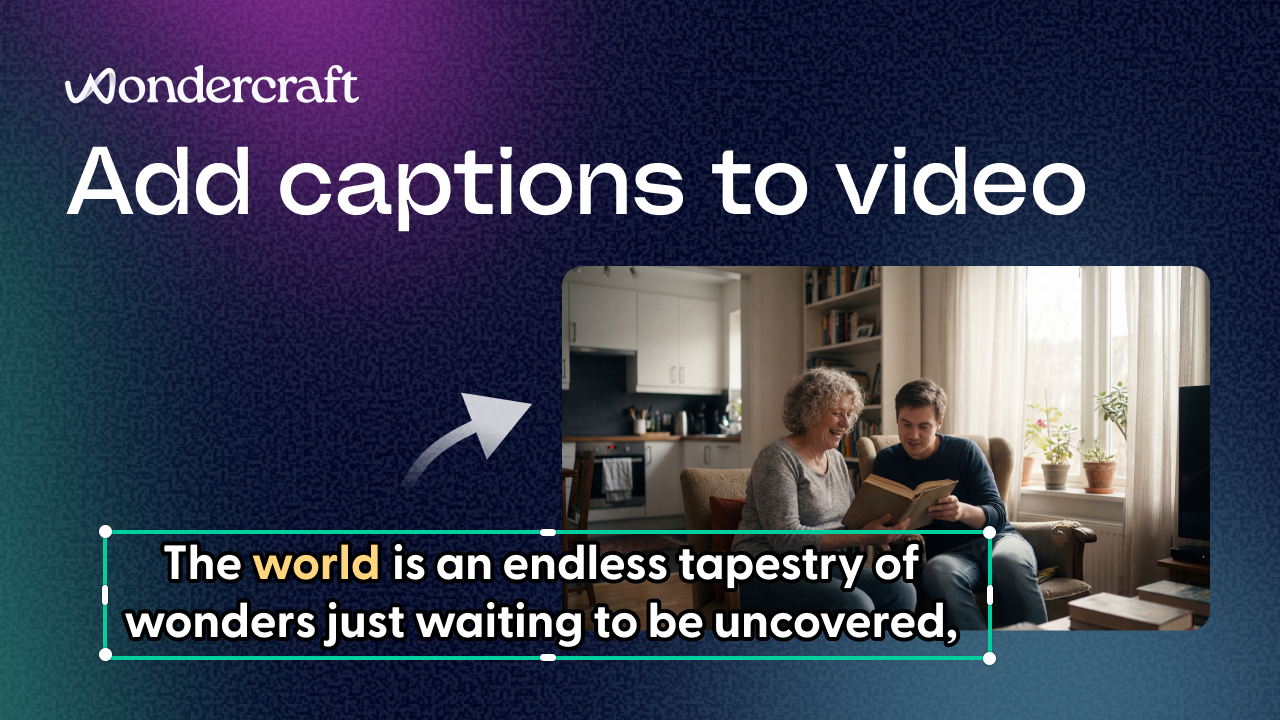
Captions, text overlays, voice clips, sound effects, and music are all editable. You can also upload a branded music track if you didn’t add one earlier.
Step 7: Edit on the timeline (fastest way to polish)
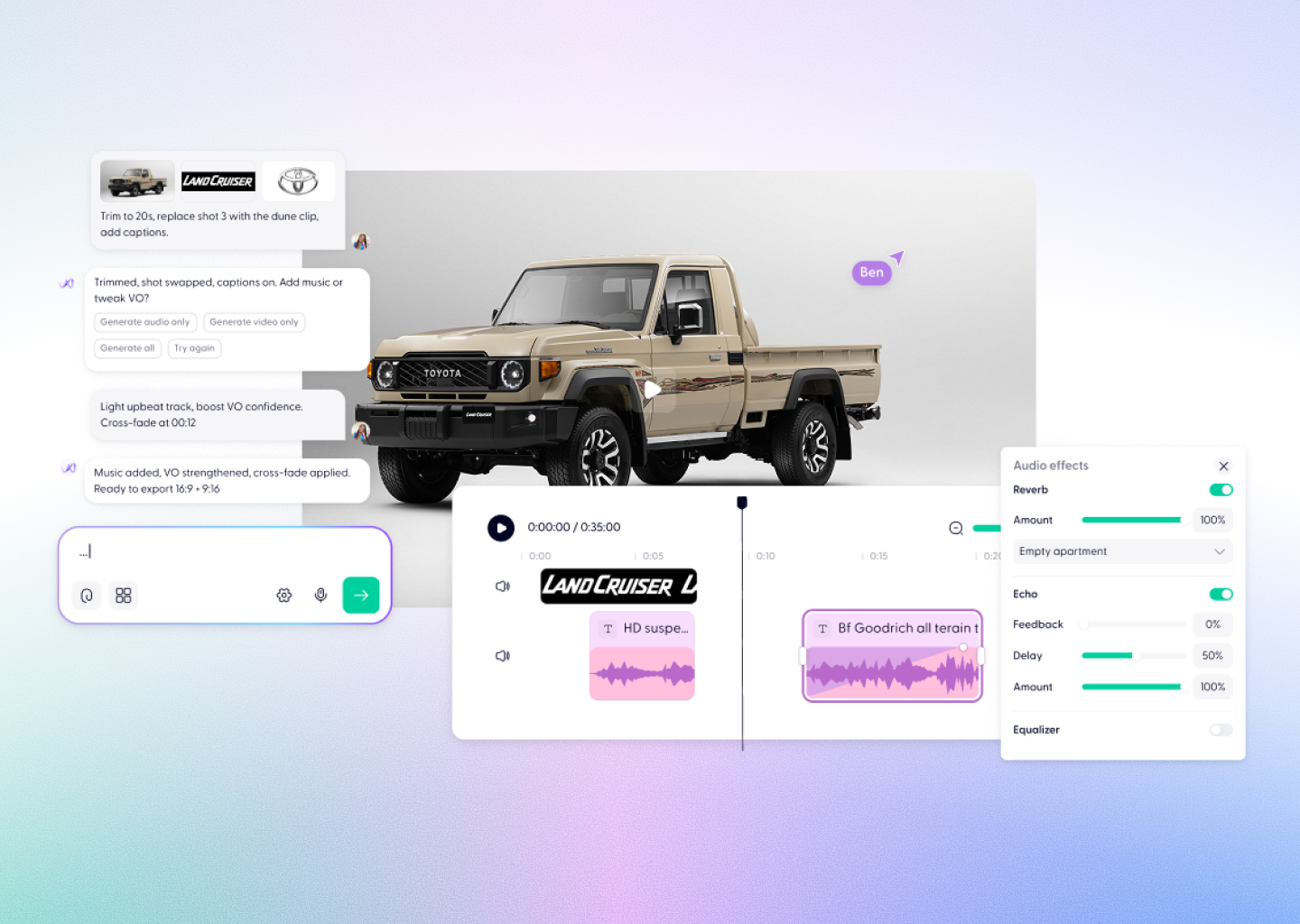
All edits happen in the timeline, which is where the video becomes production-ready.
From here you can:
- Move scenes around
- Split clips
- Adjust volume
- Apply audio effects (like reverb, echo, EQ)
This is the part that usually surprises people — because you’re not stuck with a one-shot “generation.” You can refine like a real editor.
Step 8: Export and share
Once it looks good, export your video and publish it wherever it’s meant to live — internal onboarding, training, YouTube, LinkedIn, or a resource hub.
Same content, now in a format people actually watch.
Quick tips for better PDF-to-video results
A couple of small things help a lot:
- PDFs with clear headings and sections convert more cleanly
- If your document is long, try starting with one section or summary first
- Treat the first output as a draft — generation is fast, iteration is the advantage