

Every time your team needs a new training video, someone has to block out time, find a quiet room, re-record the narration, and hope nothing changed in the script since the last take. There's a faster way.
Voice cloning used to be a novelty. Today it's a practical tool that instructional designers and L&D teams are using to produce consistent, professional-sounding video content — without booking recording time, finding a quiet space, or re-recording every time the content changes.
This guide explains how to clone your voice with AI, what the process actually looks like inside Wondercraft, and why it matters for teams producing video at scale.
Why IC and L&D Teams Are Turning to AI Voice Cloning
If you manage a library of training videos, you already know the problem: content gets stale fast. A product changes, a policy updates, a process gets revised — and suddenly you're scheduling another recording session to fix thirty seconds of narration in a twenty-minute module.
For most teams, that friction is enough to push updates to the bottom of the queue. The result? Learners watching outdated content, and IDs stuck in a reactive cycle instead of building new programmes.
AI voice cloning for video breaks that cycle. Once you've cloned a voice — your own, a subject matter expert's, or a designated narrator's — you can regenerate narration from updated text in seconds. No recording setup, no scheduling, no wasted afternoon on retakes.
And because the cloned voice stays consistent across every module, your video library sounds like it came from one professional team, even if it was built across six months and three different projects.
What You Actually Need to Clone Your Voice
The setup is simpler than most people expect.
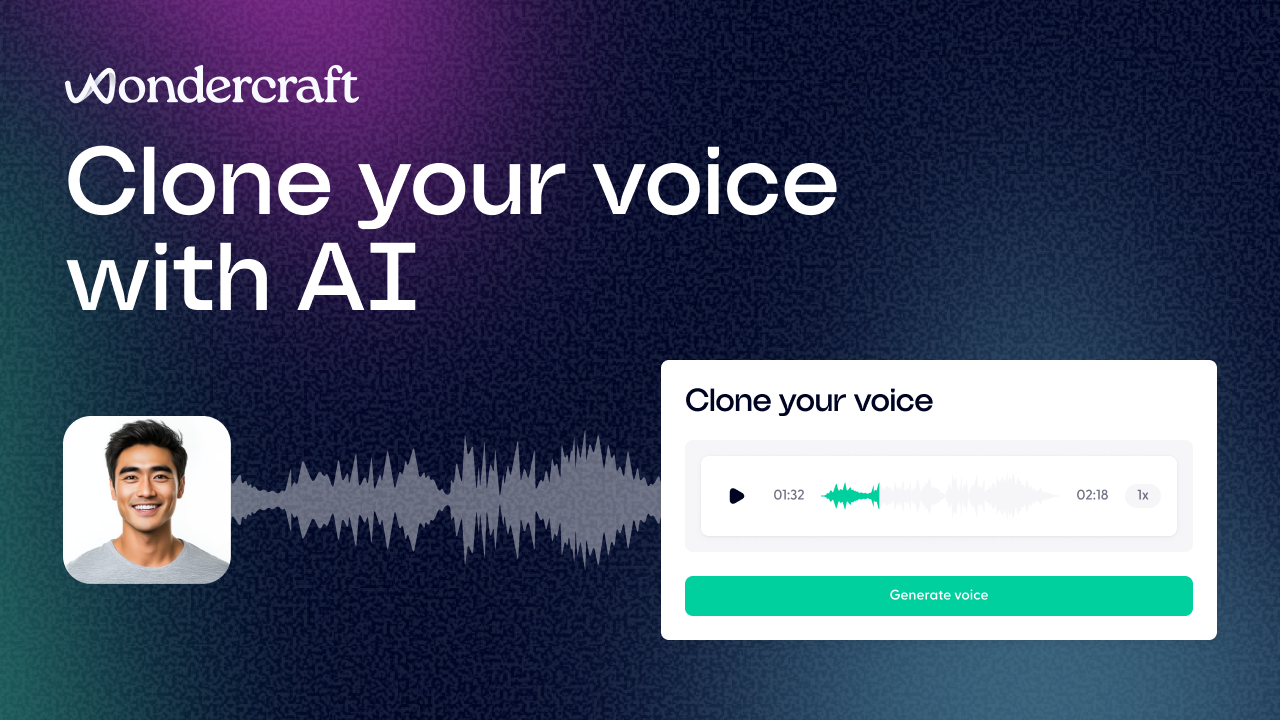
To create a voice clone on Wondercraft, you need a clean audio sample — ideally two to five minutes of speech with minimal background noise. That's it. You don't need a professional studio. A decent USB microphone in a quiet room is enough. If you already have recordings from webinars, demos, or previous training sessions, you may be able to use those directly.
Inside Wondercraft, you have three options for getting your custom voice set up:
Record directly on the platform. Wondercraft has a built-in recording tool. You read a short script, the platform captures the sample, and the clone is created from there.
Upload a pre-recorded clip. If you already have a clean audio file — a narration sample, a segment from a previous project, a voicemail recording — you can upload it and use it as the source for cloning.
Import a Professional Voice Clone from ElevenLabs. For teams that have already invested in a high-quality voice clone through ElevenLabs, Wondercraft supports direct import. Your existing PVC works inside the platform without any re-setup.
Once your voice is in the system, it's available for every project you create. You select it from your voice library the same way you'd choose a font or a colour.
How to Use a Cloned Voice in a Training Video
The practical workflow looks like this.
You start with your content — a script, a PDF, a set of slides, or even a rough outline. Wondercraft's AI generates a first draft of the video, using your cloned voice for the narration. The pacing, tone, and delivery reflect the original recording, so it doesn't sound synthesised or robotic.
From there, you edit the script directly in the platform. Change a line, update a statistic, swap out a section — the narration regenerates automatically using your cloned voice. You're not re-recording. You're editing text.
For L&D teams maintaining a large content library, this is the real value. When a process changes, you open the module, update the relevant lines in the script, and regenerate. The video is updated in minutes, not days.
No Recording Setup Required
The "no recording voice over" model is exactly what it sounds like. After the one-time setup — which takes less than an hour — you never need to record again for that voice. Every future piece of content using that narrator is generated, not recorded.
For instructional designers working across multiple subject matter experts, this is particularly useful. You can clone the voice of an internal expert, a department head, or a senior leader once, and then produce narrated content on their behalf without pulling them into a studio every time. Updates, new modules, translated versions — all of it can be generated from their cloned voice using a revised script.
A Note on Rights and Consent
Voice cloning should always be done with the explicit consent of the person whose voice is being cloned. On Wondercraft, you can clone your own voice, or any voice you have the rights to. The platform is designed for legitimate professional use — internal training, branded content, narrated communications — not for replicating voices without permission.
If you're building a voice library for your organisation, document consent clearly and treat cloned voices the same way you'd treat any other intellectual property.
Getting Started
If you want to see how voice cloning works in practice, Wondercraft has a short walkthrough video showing the three methods for setting up your clone — recording in-platform, uploading a file, and importing from ElevenLabs. Note that the platform has been updated since the video was recorded, but the core process is the same.
The fastest way to get started is to create a free account on Wondercraft, record a short sample using the built-in tool, and generate your first piece of narrated content from a script. Most teams have a working voice clone and a draft video within the same session.
When your content library needs updating, you'll already have everything set up to do it in minutes.